> ## Documentation Index
> Fetch the complete documentation index at: https://bmdrm.com/docs/llms.txt
> Use this file to discover all available pages before exploring further.
# Get Started with BMDRM
> It’s free to get started.
This quickstart guide will walk you through the steps to upload, manage, and deliver your first video using BMDRM. Let’s get your content streaming to viewers across the globe in no time.
### Create an account
our free trial includes **5 GB of storage and 2 GB of bandwidth**, with no payment card required. Any unused trial credits expire when your trial ends
[**Sign-up**](https://dev.bmdrm.com/en/register) and register for a free trial account.
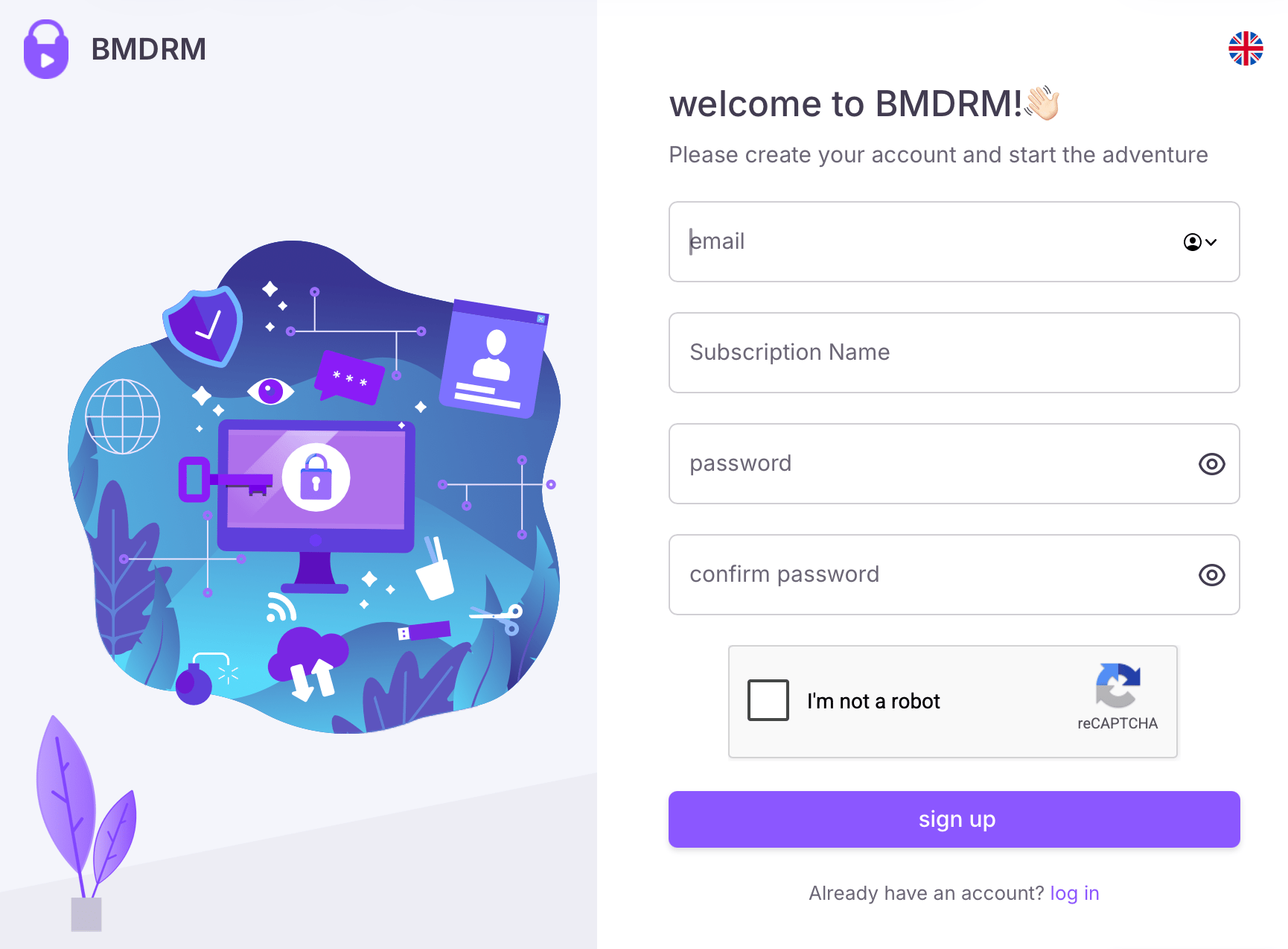 You must use the link in the email sent to you. Once done, you’ll be able to upload and manage as many videos in your account as you need during the trial.
1. Click **Videos** on the sidebar.
You must use the link in the email sent to you. Once done, you’ll be able to upload and manage as many videos in your account as you need during the trial.
1. Click **Videos** on the sidebar. 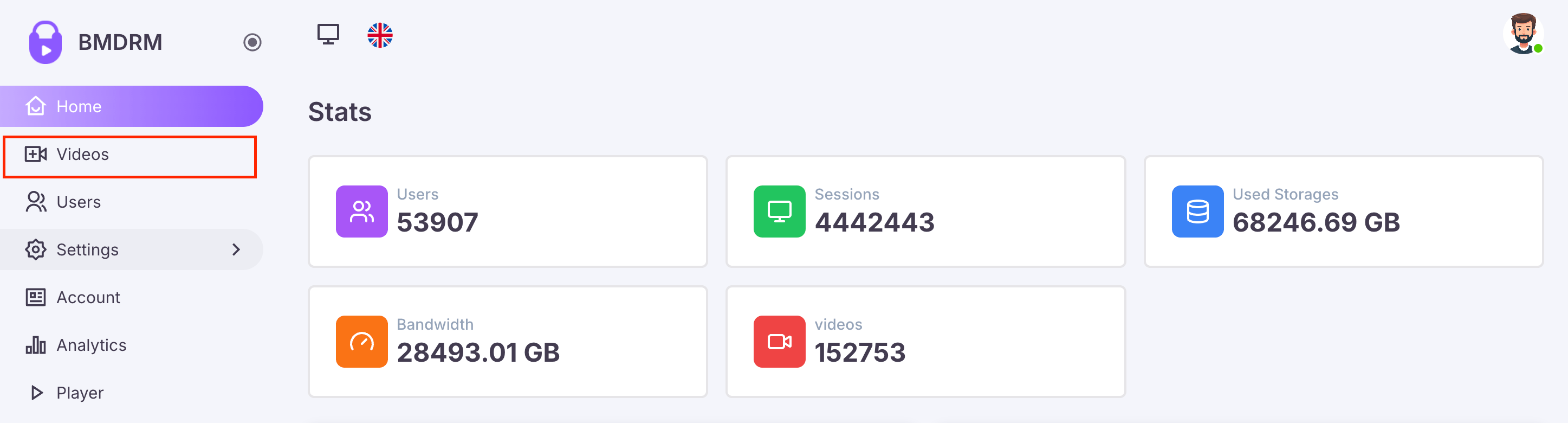 2. Click **Upload a video**.
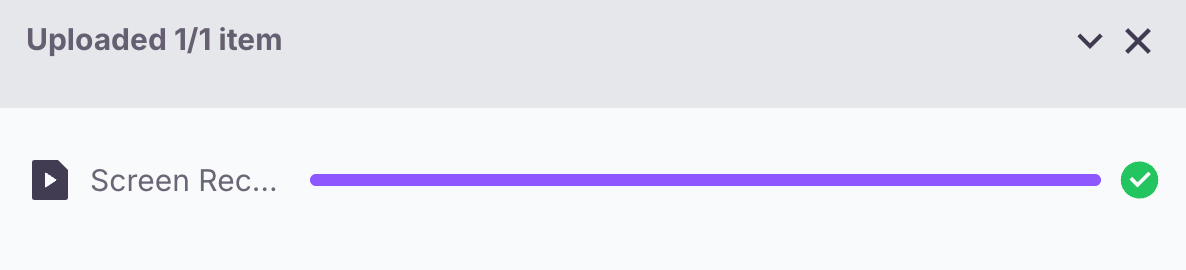
 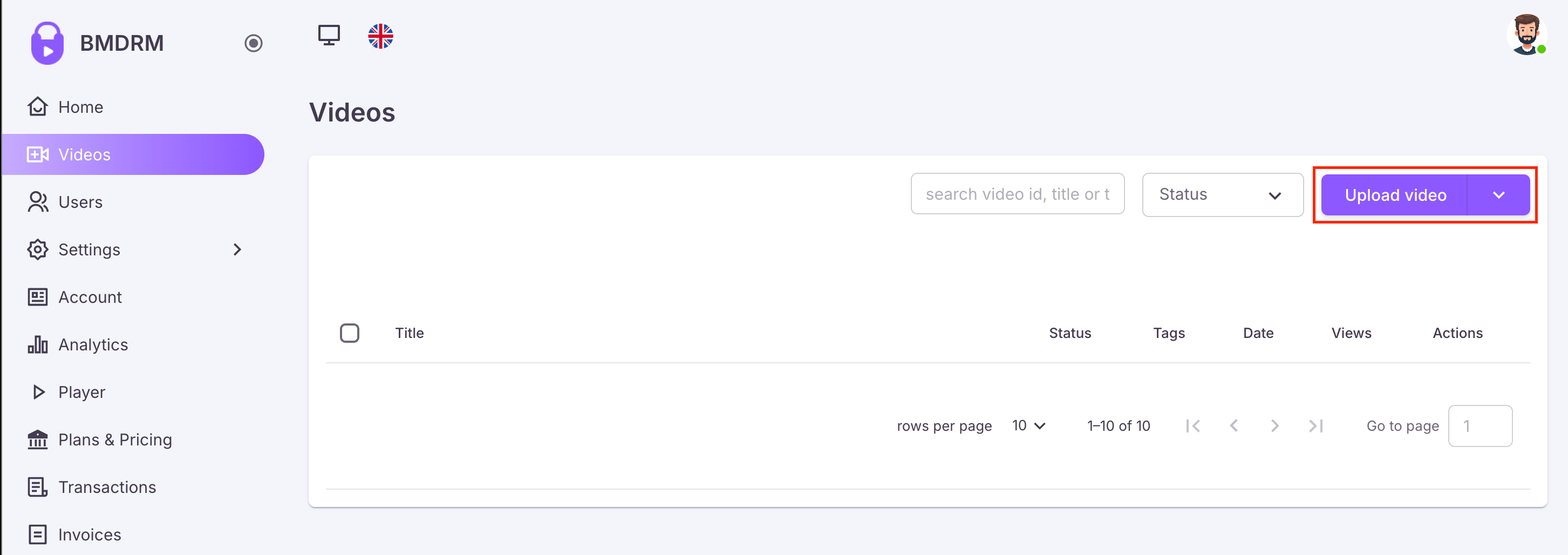 3. A new popup will open, allowing you to select or drag the video files which will automatically start the upload after you click **Submit**.
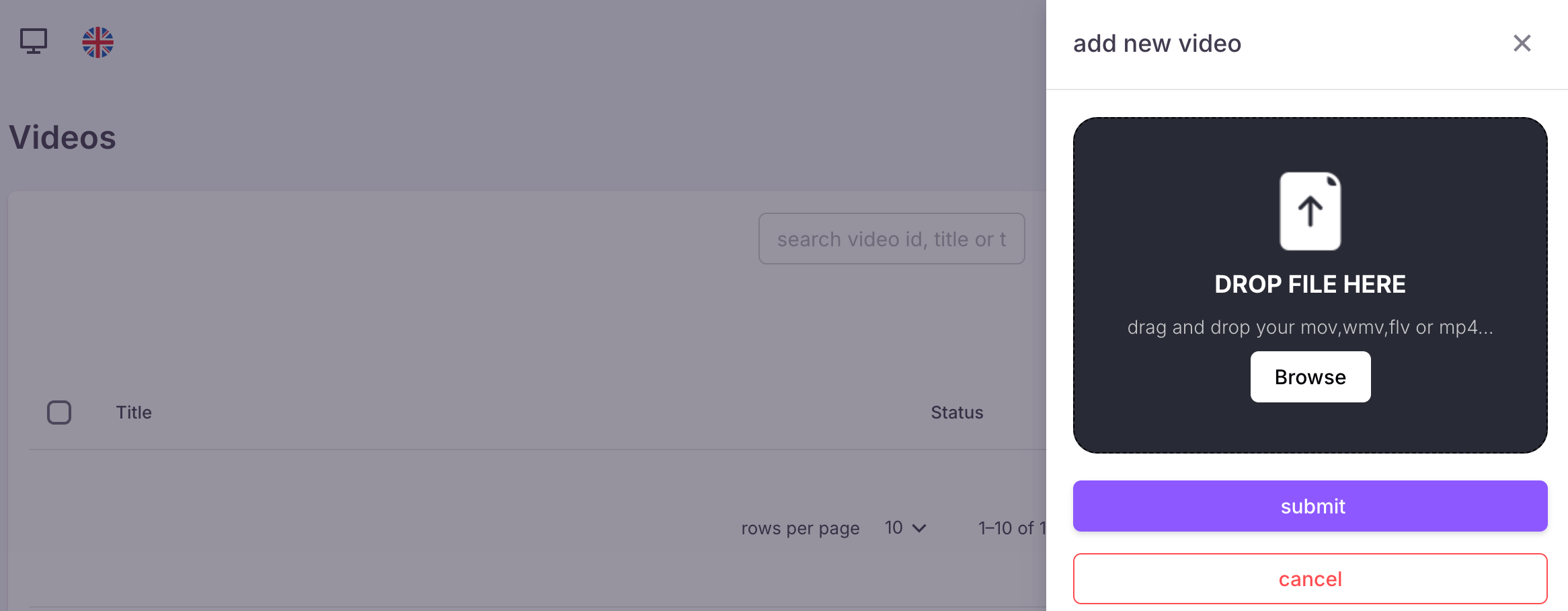 4. BMDRM will then process and encode your video for optimal streaming across devices and bandwidths.
  ## Getting the embed code or video URL
Once your video is uploaded and processed, you can integrate it into your website or share it directly with your viewers.
1. Getting the video URL.
## Getting the embed code or video URL
Once your video is uploaded and processed, you can integrate it into your website or share it directly with your viewers.
1. Getting the video URL.  2. Click on the clipboard icon.
 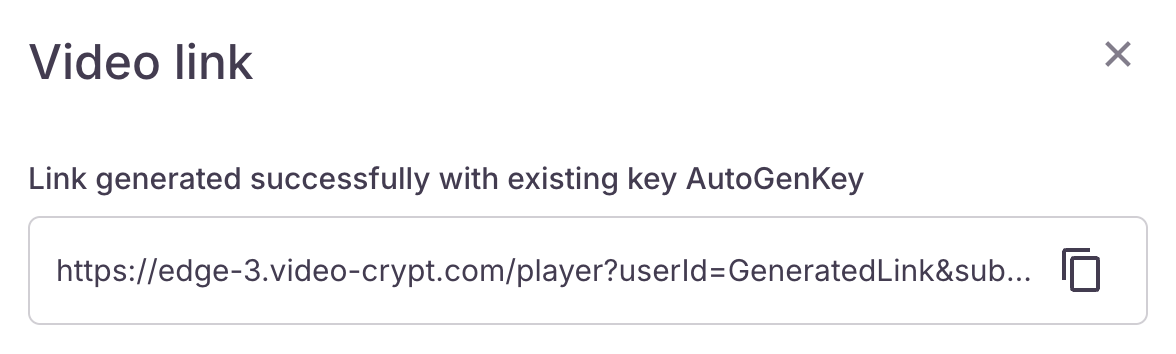 After obtaining the video URL, you can directly share it through email, social media, or any other communication channel.
Your dashboard includes a handy countdown timer that tracks the remaining days of your trial. This feature helps you plan your usage effectively, ensuring you make the most of your trial period.
After obtaining the video URL, you can directly share it through email, social media, or any other communication channel.
Your dashboard includes a handy countdown timer that tracks the remaining days of your trial. This feature helps you plan your usage effectively, ensuring you make the most of your trial period.
Once your 14-day trial expires, any remaining trial credits are removed from your account. Trial credits cannot be carried over or converted to paid credits.
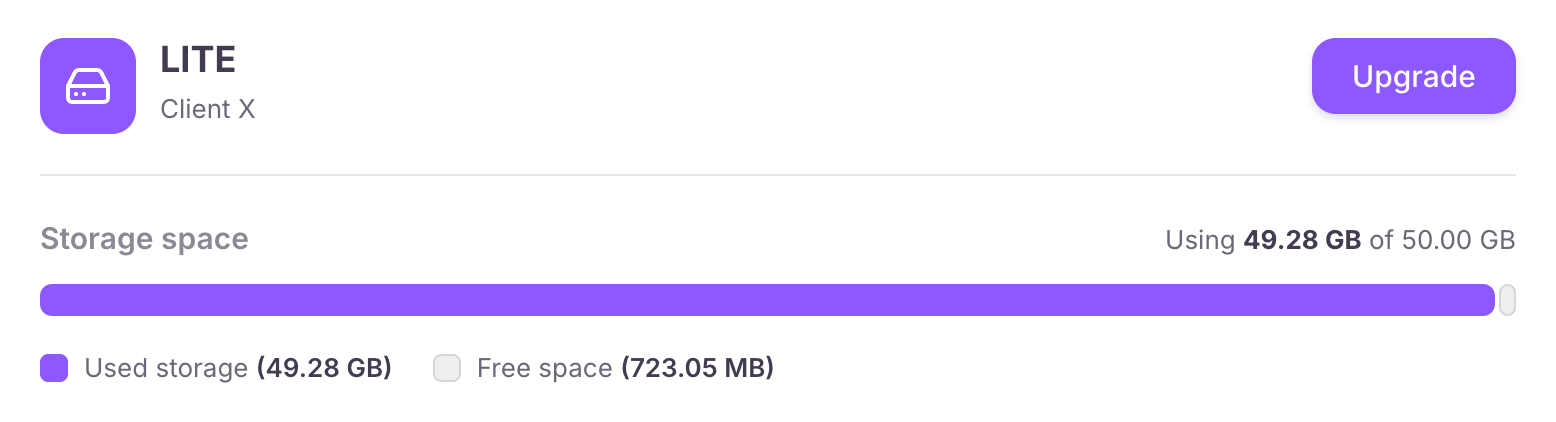 However, you can continue enjoying bmdrm’s services by clicking the **Upgrade** button and adding funds.
### Upgrading to a paid account
You can add funds to your account anytime during or after the trial. Even after adding funds, you will continue to use your trial credits until they expire, ensuring a seamless transition.
When you top up your account, the full amount you add will be credited to your balance, regardless of your negative trial balance. To reactivate your account, simply add funds to bring your balance positive.
This documentation is built and hosted on [Mintlify](https://mintlify.com), a developer documentation platform.
However, you can continue enjoying bmdrm’s services by clicking the **Upgrade** button and adding funds.
### Upgrading to a paid account
You can add funds to your account anytime during or after the trial. Even after adding funds, you will continue to use your trial credits until they expire, ensuring a seamless transition.
When you top up your account, the full amount you add will be credited to your balance, regardless of your negative trial balance. To reactivate your account, simply add funds to bring your balance positive.
This documentation is built and hosted on [Mintlify](https://mintlify.com), a developer documentation platform.